Career Navigator
Career Navigator is the full career profile for one employee. It brings together an AI profile summary, AI-generated career paths and fit scores, a gap analysis for any target role, work history, training, skills, 360 feedback and development plans.
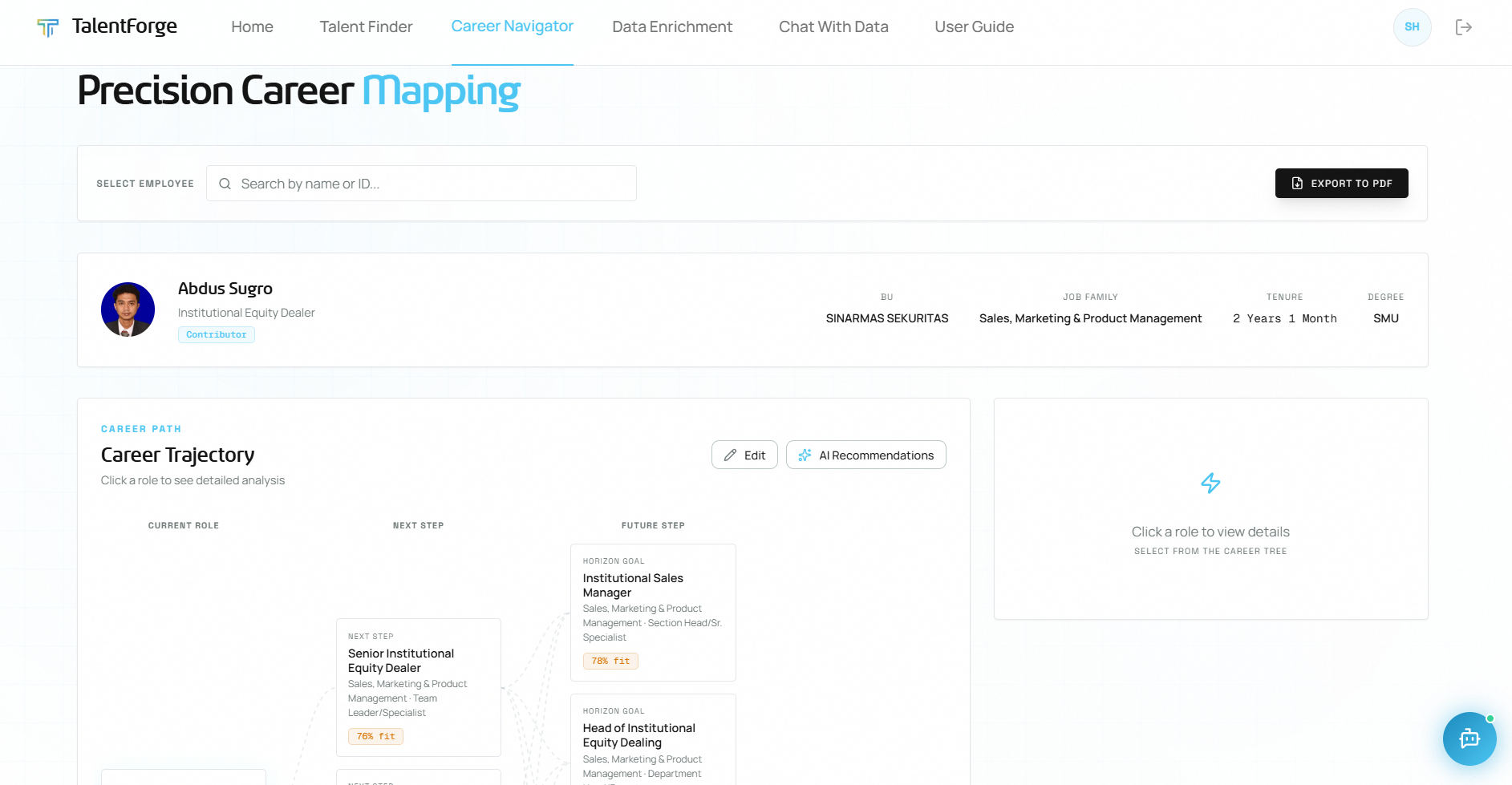
Finding an Employee
- Click Career Navigator in the left sidebar. On a phone, open the menu first.
- In Select Employee, type a name or employee ID. Position and past job titles also match.
- A list of matching employees appears with photo, position and age. Click the right person.
You can also jump straight to an employee's page from:
- the Career button on a Talent Finder card, or the link icon in the Succession Pipeline panel;
- View full profile in Organisation Structure;
- Career Map at the end of a Data Enrichment scrape;
- View Career Path in Position Match or Similarity Search.
Until you pick someone, the page shows "Search and select an employee above to explore their career path".
Profile Strip & Profile Summary
The top card shows the employee's photo, name, position, age and talent class. On larger screens it also shows BU, Job Family, Tenure, Age and Degree.
Below that is the Profile Summary: a short AI-written overview of the person's current role, career path so far and education, with key terms in bold.
- It is written from HR records and LinkedIn work history. It is told never to invent employers, schools, dates or achievements.
- A Limited data chip means part of the usual evidence (career history or education) was missing, so treat the summary with extra care.
- The first time a summary is written it can take a few seconds. You'll see Generating while it works.
- Click Regenerate to rewrite it from the latest data.
- If there is too little on record, the card says "Not enough profile data to generate a summary." instead of guessing.
⚠️ Warning: The summary is AI-generated. Verify it before using it in a talent decision.
Talent Movement
If you have access to Talent Movement, a Talent movement panel appears below the profile card. Users without that access don't see the panel.
It shows the employee's path since 2024 as a row of stops: joins, moves between business units or positions, promotions and exits. Stops are colour-coded: green for joined or promoted, amber for a move, red for an exit. Click a stop to see:
- Where they were: business unit, position, PS level and layer, before and after.
- Record: join date, PAT ratings for 2025 to 2022, and the exit reason if there is one.
If nothing has been recorded, the panel says "No join, move, or exit recorded since 2024."
Understanding the Career Path Graph
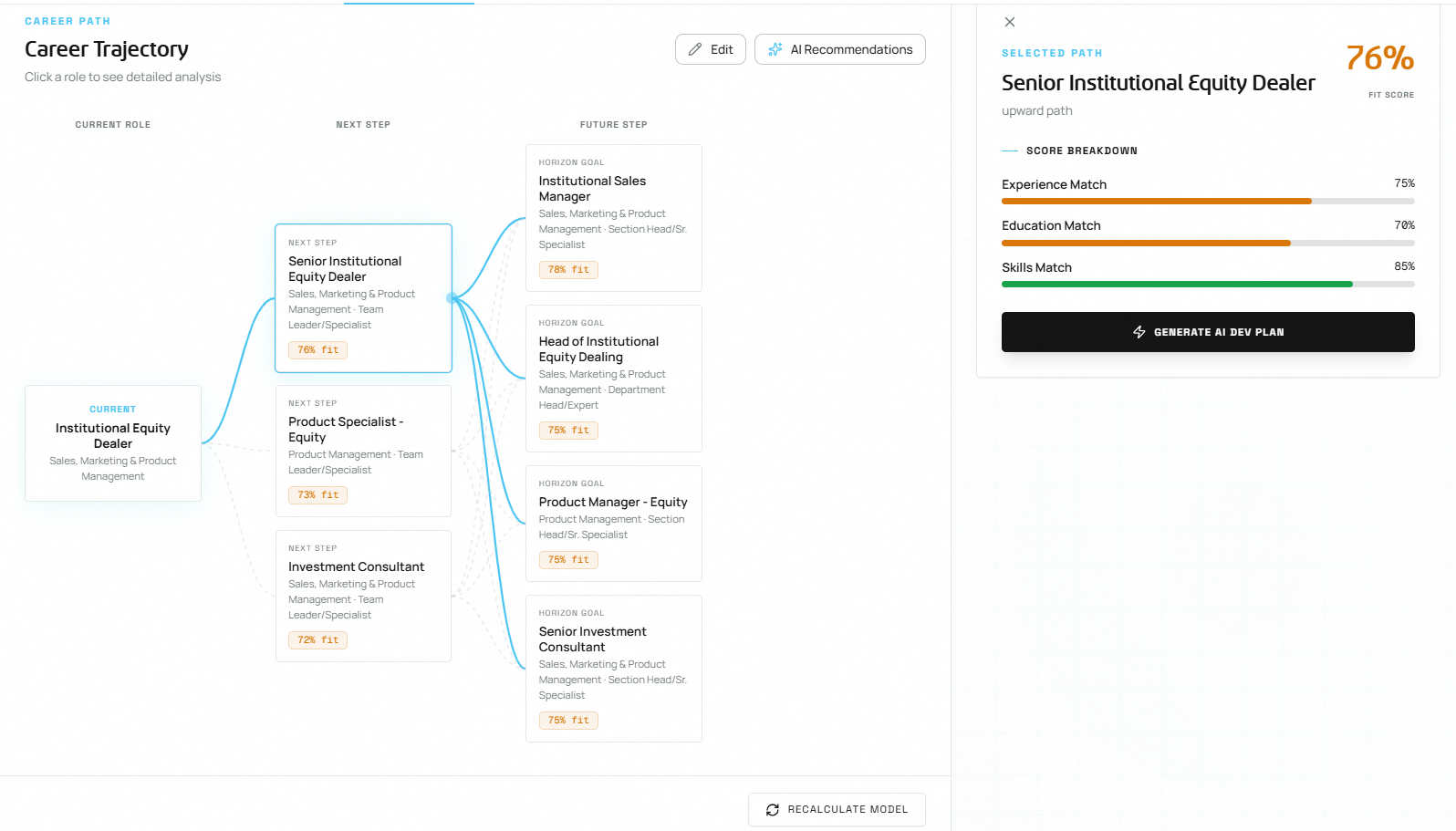
The Career Path card maps where the employee could realistically go next, based on their experience, education and skills.
The graph has three columns:
| Column | What it shows |
|---|---|
| Current Role | The employee's position today, your starting point |
| Next Step | Realistic next moves |
| Future Step | Longer-term destinations, shown on cards labelled Horizon Goal |
Each role card shows the role name, job family and layer, and a fit badge such as 76% fit. The badge is green from 90%, amber from 70% to 89%, and grey below 70%.
How to interact:
- Click any role card to select it. Its connecting lines are highlighted and the Role Detail panel on the right shows its fit score breakdown.
- Every Next Step is linked to every Future Step, so the lines show the overall picture rather than one fixed route.
- Click the × at the top of the Role Detail panel to clear your selection.
Generating and refreshing career paths
- The first time you open an employee, the graph may say "No career paths available". Click AI Recommendations to generate them. This takes a little while.
- Generated paths are saved, so the next visit loads them instantly.
- AI Recommendations (top of the card) and Recalculate Model (bottom of the card) both ask the AI to build a fresh career map and fit scores from the latest data.
- When an employee's data changes, their saved paths are marked outdated. Changes include tagging them in Talent Finder, a bulk import, or a LinkedIn enrichment. The graph is then empty until you click AI Recommendations again.
💡 Tip: Scores do not update by themselves. After any change to an employee's data, open their page and click AI Recommendations.
Editing the career path
You can adjust the AI's suggestions by hand. The Edit button appears once career paths exist.
- Click Edit. The heading changes to Edit Mode.
- On any role card, click the pencil to edit it or the red × to remove it.
- Click Add Role at the bottom of the Next Step or Future Step column to add your own role.
- In the Add Role or Edit Role window, fill in Role Name (required), Job Family, Layer and Path Type (Upward or Lateral), then click Save Role.
- Click Save to keep your changes, or Cancel to discard them.
A role you add yourself has no fit score.
⚠️ Warning: Clicking AI Recommendations or Recalculate Model replaces the whole career map with a fresh AI version, including any roles you added or edited by hand.
If someone else changed the same career path while you were editing, you'll see "Someone else modified this record. Please refresh." Reload the page and make your edits again.
Arriving from Position Match or Similarity Search
When you open Career Navigator from View Career Path in Position Match or Similarity Search, the page looks for the target role in the employee's career map:
- If the role is already there, it is highlighted and selected for you.
- If not, the AI regenerates the career map and looks again.
- If it still isn't there, the role is added as a Horizon Goal so you can see the fit breakdown and build a development plan towards it.
- If none of that works, a message asks you to use AI Recommendations or Edit to add the role yourself.
Reading a Fit Score
When you click a role, the Role Detail panel shows Selected Path, the role name, whether it is an upward or lateral path, and the Fit Score as a large percentage.
The Score Breakdown has three parts:
| Component | Weight | Based on |
|---|---|---|
| Experience Match | 40% | How closely the employee's past roles align with the target role |
| Education Match | 30% | Whether the degree level and field match the role's typical requirements |
| Skills Match | 30% | How many of the role's skills the employee already holds |
Formula: (Experience × 0.40) + (Education × 0.30) + (Skills × 0.30)
When the employee has no LinkedIn skills and no internal training on record, Skills Match shows N/A. The score is then 50% Experience + 50% Education.
What the score means:
| Score | Interpretation |
|---|---|
| 90–100% | Excellent candidate, minimal development needed |
| 70–89% | Strong candidate. Check Skills to Develop for specific gaps |
| Below 70% | Significant preparation needed before the employee is competitive |
Click Generate AI Dev Plan in the panel to draft a development plan for this role. See Development Plans.
Career Gap Analysis
The Career Gap Analysis section gives an in-depth AI assessment of what the employee needs to move into a specific role. It appears once the employee has career paths.
How to use it
- Scroll to Career Gap Analysis below the career path graph.
- Open the Select a target role... dropdown. It lists every Next Step and Future Step role, for example "Senior Institutional Relationship Supervisor (Next Step)".
- The AI compares the employee's profile with the role and writes a report. You'll see "Analyzing career gap..." while it works.
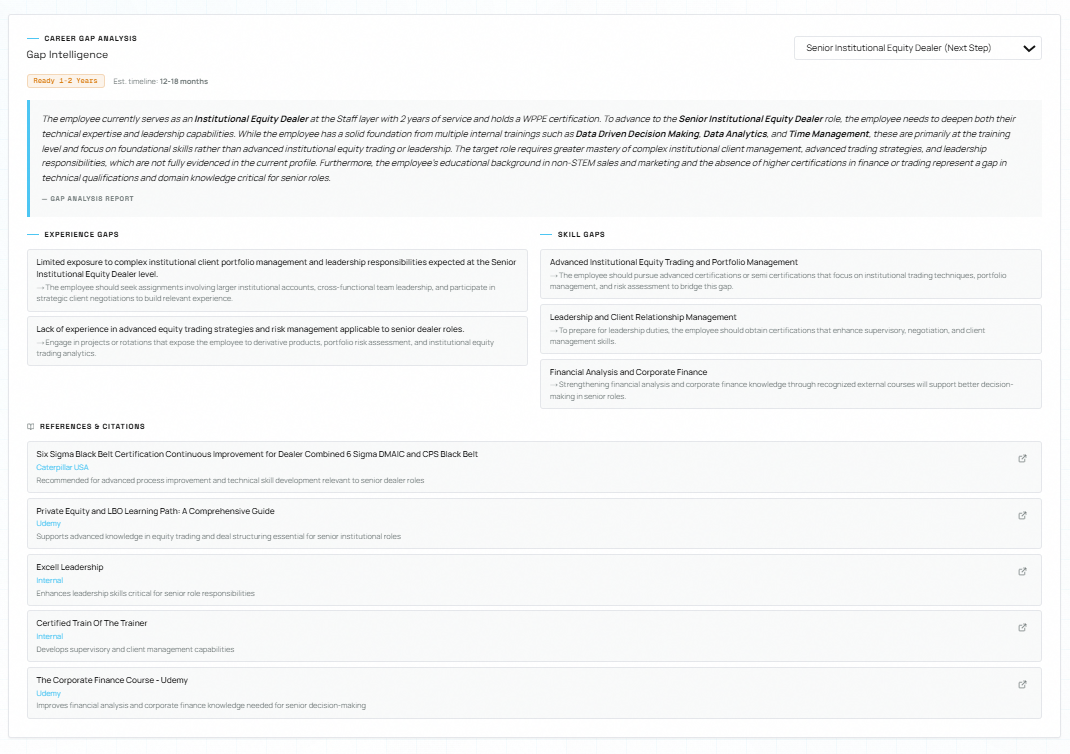
What the report shows
| Section | Description |
|---|---|
| Readiness badge | How soon the employee could be ready: Ready Now, Ready 1-2 Years or Ready 3+ Years |
| Est. timeline | A time estimate (for example, "12-18 months") to close the gaps |
| Narrative | An AI-written paragraph on current strengths, what's missing and what to do |
| Experience Gaps | Specific experience the employee lacks, each with a recommendation (marked →) |
| Skill Gaps | Specific skills to develop, each with a recommendation (marked →) |
| References & Citations | Courses, certifications and other resources, with provider and why each is relevant |
Where a citation has a web address, click the link icon to open it in a new tab.
The report is saved the first time it is produced for a role. Choosing the same role again shows the saved report.
💡 Tip: Run the Gap Analysis before creating a Development Plan. It tells you what to include, and the cited courses can become development items.
Common mistakes to avoid:
- Forgetting to pick a target role. The analysis only runs once you choose one.
- Skipping References & Citations. They often name specific, actionable training.
Skills
The Skills card shows the employee's skill tags as # chips.
- Tags from your organisation's skills data appear first.
- Click Generate from experience to have the AI infer skill tags from the employee's internal, external and LinkedIn work history. These appear under an AI-inferred label, with a dashed outline, and duplicates are left out.
- Click Regenerate from experience to replace the AI-inferred set with a new one.
- If there are no tags yet, the card suggests using Generate from experience.
Work Experience
The Work Experience card has two parts.
Internal Work Experience
Roles the employee has held inside the organisation, from HR records. Each entry shows the role, company or business unit, and dates. If nothing is recorded, you'll see "No internal work experience data available."
External Work Experience
Roles outside the organisation, combined from two sources:
- HR records: the HR system's own account of previous employers.
- LinkedIn: work history from the employee's LinkedIn profile, added through Data Enrichment or a LinkedIn Profile bulk import.
Each entry carries a small HR records or LinkedIn label so you know where it came from. When both sources list the same job, it appears once. Roles at group companies are left out because they are internal. If nothing is recorded, you'll see "No external work experience data available."
Both lists show 5 entries per page. Use Prev and Next to move through them. A Last Updated date shows when the LinkedIn data was last refreshed.
💡 Tip: Work experience drives the Experience Match part of the Fit Score (40%). The fuller the history, the better the recommendations.
Internal Training & Skills
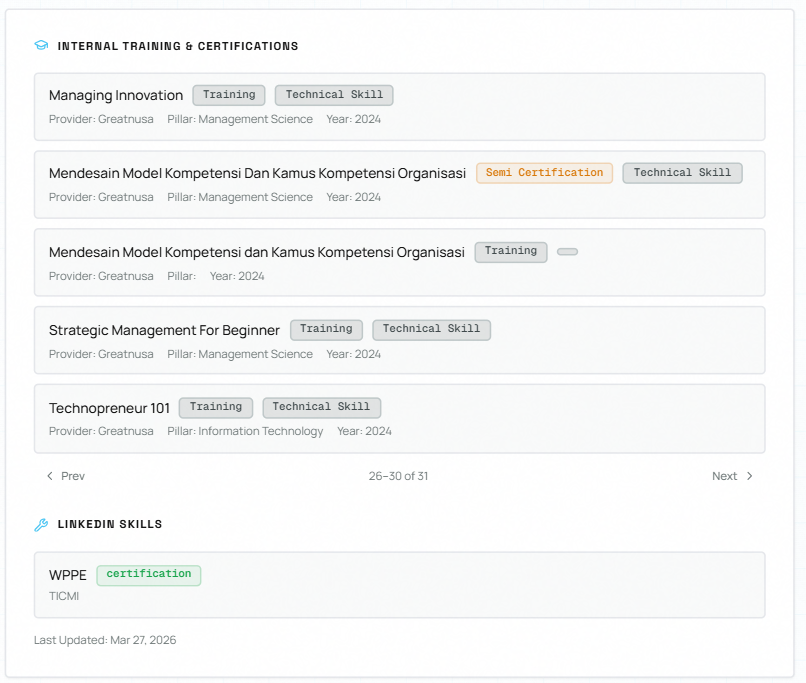
Internal Training & Certifications
Training records from your organisation's HR system: formal, company-sponsored learning. Each record shows:
| Field | Description |
|---|---|
| Training name | Full title of the course or certification |
| Type badge | Certification (green), Semi Certification (amber), Workshop (indigo), or other types such as Training (grey) |
| Category badge | For example, "Technical Skill", "Soft Skill", "Mandatory" |
| Provider | Who delivered it |
| Pillar | Business pillar (for example, Information Technology) |
| Year | When it was completed |
| Hours | Total learning hours |
| Cert# | Certificate number, for certified training |
LinkedIn Skills
Certifications, courses and languages from the employee's LinkedIn profile. Each shows the name, a type badge (certification in green, course in indigo, language in grey) and a detail line such as the issuer or proficiency level.
Both lists show 5 per page, with Prev and Next and a counter such as "1–5 of 50".
LinkedIn skills and internal training feed three things:
- Fit Score, Skills Match (30%)
- Skills to Develop
- Gap Analysis
Common mistakes to avoid:
- Treating internal training and LinkedIn skills as the same thing. One comes from HR records, the other from LinkedIn.
- Ignoring "No LinkedIn skills data available". It lowers Fit Score accuracy. Use Data Enrichment to pull in the employee's LinkedIn profile.
360 Feedback & Aspiration
When HR records hold 360 feedback or a career aspiration for the employee, a 360 Feedback & Aspiration card shows four boxes:
- Strengths
- Areas to Improve
- Peer Comments (360)
- Career Aspiration
Entries show their date where one was recorded. A box with nothing in it says so, for example "No aspiration recorded." If none of the four has data, the card is hidden.
Skills to Develop
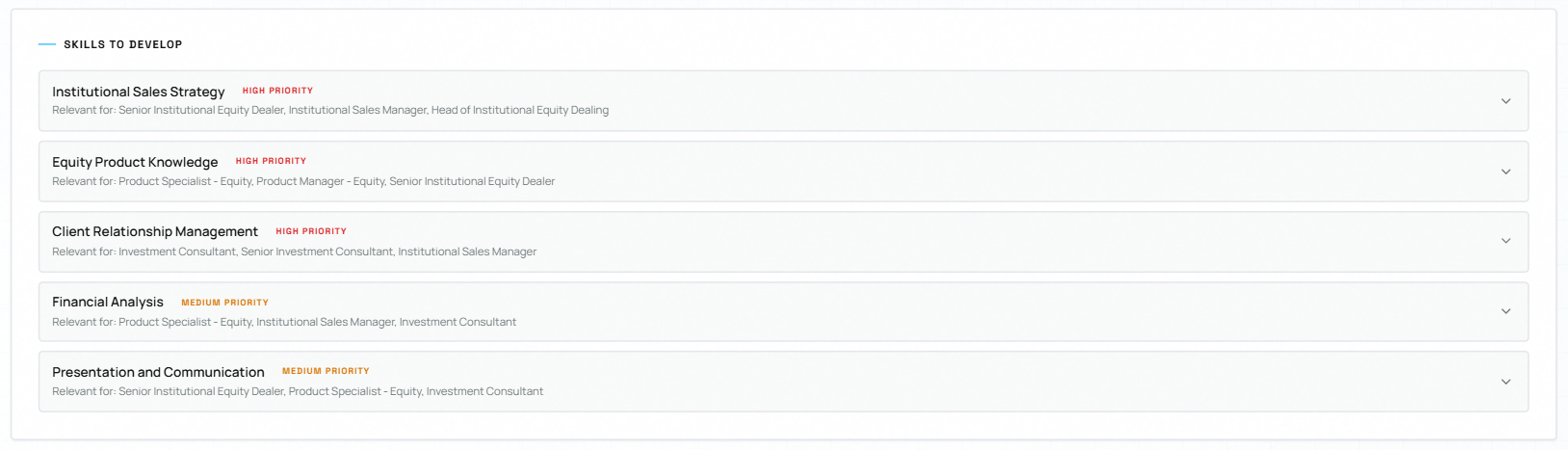
The Skills to Develop card lists the skills the employee should build for the roles on their career map.
Each skill shows:
- a priority label: High Priority (red), Medium Priority (amber) or Low Priority (cyan);
- Relevant for: the career-map roles the skill matters for.
Click a skill to expand it. You'll see the AI's suggestion and any Learning Resources it recommends. If there's no recommendation yet, click AI Recommendations on the career map.
If the card says "No skills data. Generate career paths to populate.", click AI Recommendations first.
💡 Tip: Use this list as your starting point when creating a Development Plan.
Development Plans
Development plans track the actions an employee needs to take to reach a target role.
Viewing plans
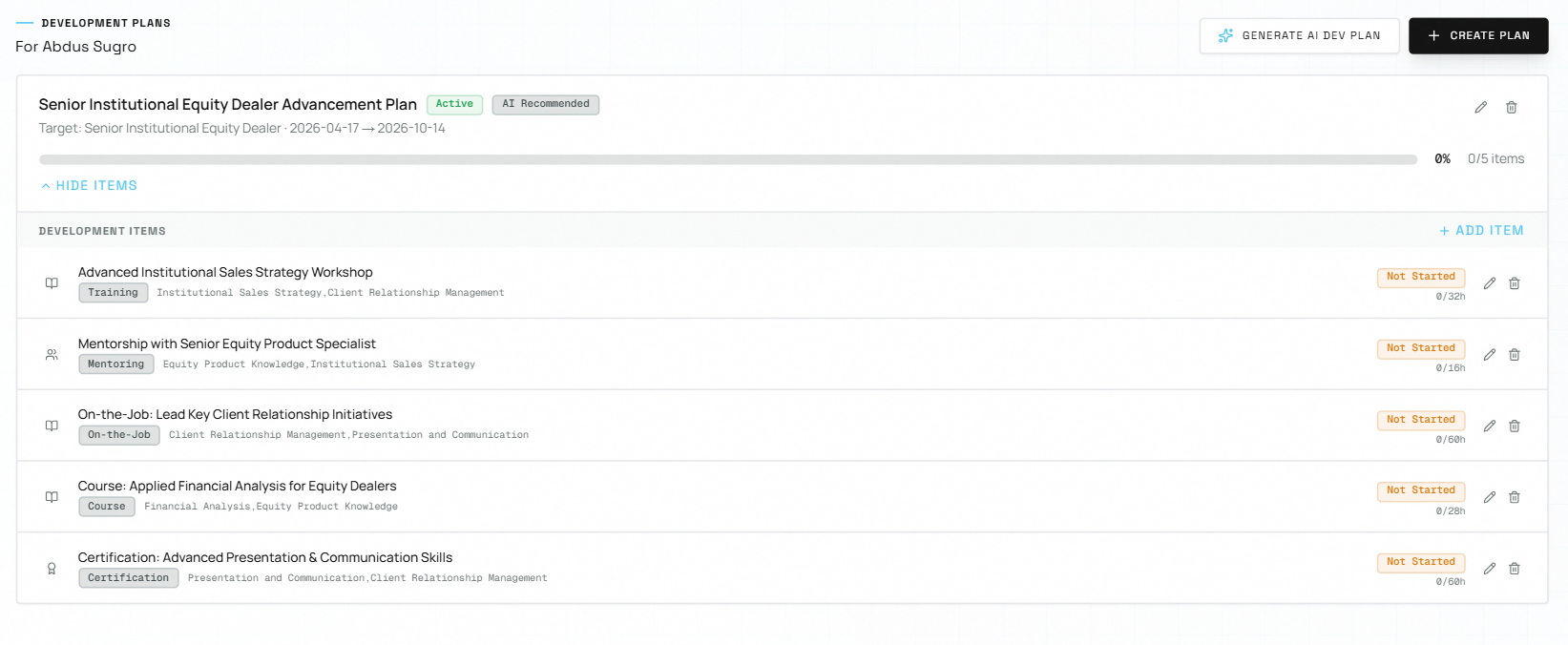
Each plan card shows:
- the plan title, a status badge (Active, On Hold or Completed) and a source badge (for example, AI Recommended);
- the Target role and the start and end dates;
- a progress bar with the percentage and the number of items completed, for example "2/5 items".
Click View Items to expand a plan, and Hide Items to collapse it.
Creating a plan yourself
- Click Create Plan above the plan list.
- Fill in Plan Title, Target Role, Start Date, End Date and Source (Career Navigator, Manual or AI Recommended). Title and both dates are required.
- Click Create Plan.
- Click View Items on the new plan, then + Add Item to add development items (see below).
Generating an AI development plan
- Click the target role on the career map so it is selected.
- Click Generate AI Dev Plan, either in the Role Detail panel or above the plan list.
- The AI-Generated Development Plan window opens with a plan title and 3–5 suggested items. Each item has a title, type, skill tags, estimated hours and a due date.
- Edit anything you like. Click Add Item to add another, or the remove icon to drop one.
- Click Save Plan.
The plan is saved with source AI Recommended. It starts today and ends in six months. You can change the dates afterwards.
Adding and updating items
When a plan is expanded:
- Add an item: click + Add Item. Enter a Title, Type (Training, Course, Workshop, On-the-Job, Mentoring, Self-Study, Certification or Other), Skill Tags and Hours Estimated, then click Add.
- Update progress: click the pencil on an item. Change its Status (Not Started, In Progress or Completed), Hours Estimated or Hours Actual, then click Save.
- Delete an item: click its trash icon and confirm.
The plan's progress bar updates as items are completed.
Editing, completing or deleting a plan
- Edit or complete: click the pencil on the plan card. Change the title, target role, dates or Status (Active, On Hold or Completed), then click Save Changes. To finish a plan, set its status to Completed. To pause it, choose On Hold.
- Delete: click the trash icon on the plan card and confirm. This is permanent.
If someone else changed the plan while you were editing, you'll see "Someone else modified this record. Please refresh."
⚠️ Warning: Deleting a plan cannot be undone. To pause a plan instead, set its status to On Hold.
Common mistakes to avoid:
- Creating a plan without checking Skills to Develop and the Gap Analysis first.
- Forgetting to update item statuses as the employee progresses. Up-to-date items keep the Home dashboard accurate.
Exporting to PDF
Click Export to PDF (next to the employee search) to download the employee's whole Career Navigator page as an A4 PDF. The file is named after the employee and today's date.
What is on screen is what goes into the PDF, so expand the sections you want to include before exporting. Some profile photos may appear as initials in the PDF. If the export fails, you'll see a message asking you to try again.