Data Enrichment
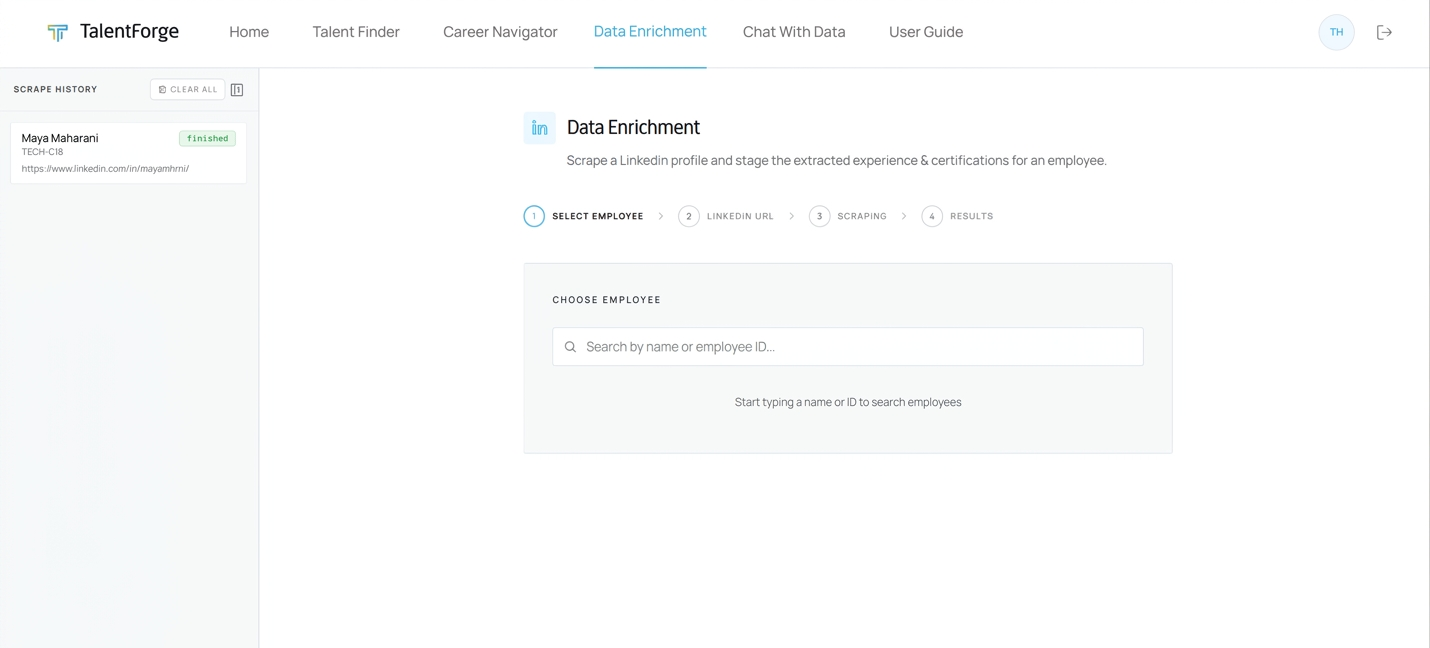
Data Enrichment pulls an employee's LinkedIn profile into TalentForge, one employee at a time. It brings in work history, certifications, courses and languages, and also education, headline and photo. The data goes straight into the employee's profile and feeds Career Navigator.
How It Works
Data Enrichment is a four-step wizard:
| Step | What happens |
|---|---|
| 1 — Select Employee | Search for the employee whose profile you want to enrich |
| 2 — LinkedIn URL | Paste the employee's LinkedIn profile URL |
| 3 — Scraping | Our LinkedIn enrichment service reads the profile. This usually takes 1–3 minutes |
| 4 — Results | The work experience and skills that were saved to the profile are shown |
The Scrape History panel on the left lists the scrapes you've run, so you can reopen past results without scraping again.
Scrape History Panel
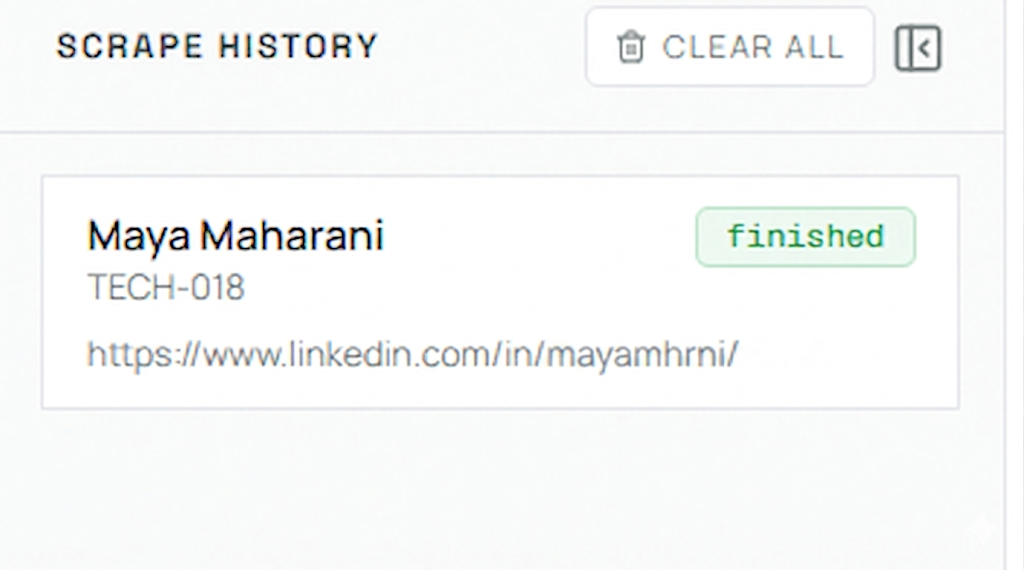
Your scrape history is saved to your account. It is still there after you refresh the page or sign in on another device. The panel keeps your 50 most recent scrapes.
| Element | Description |
|---|---|
| Employee name | The employee you enriched |
| Employee ID | Shown below the name |
| LinkedIn URL | The URL you submitted |
| Status badge | finished (green): completed successfully · failed (red): the profile could not be read, or the scrape timed out · submitted (grey): the scrape was started but no result was recorded |
Actions:
- Click an entry to open the employee's results. It shows the LinkedIn data currently saved in their profile, with no new scrape.
- Delete one entry: hover over it and click the small trash icon.
- Clear All (top of the panel) removes every entry from your history straight away. It does not delete any data already saved to employee profiles.
- Hide the panel: click the panel icon next to Clear All. Click the history icon at the top left to show it again.
- On a phone, the panel opens as an overlay and starts closed.
Step 1 — Select Employee
- Click Data Enrichment in the left sidebar. On a phone, open the menu first.
- Type in the search box. It matches name, employee ID, current position and past job titles.
- Results appear as you type. Each shows the employee's photo, position, business unit and ID.
- Click the right employee to move to Step 2.
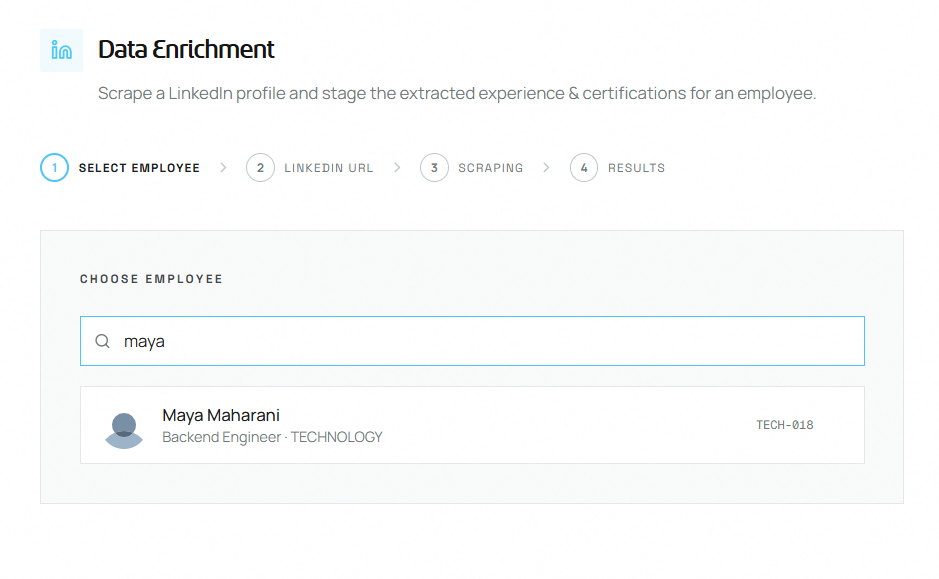
If nothing matches, you'll see "No employees found for" and your search text.
💡 Tip: You can only enrich employees in your assigned business units. Employees from other units don't appear in the results.
ℹ️ Note: Position Match and Similarity Search show an Enrich Data button when listed candidates are missing LinkedIn data. Click a name there and Data Enrichment opens with that employee already selected. You go straight to Step 2, with the LinkedIn URL filled in if one is on record.
Step 2 — Enter LinkedIn URL
A confirmation card shows the employee's name, position, business unit and ID. Below it is the URL field.
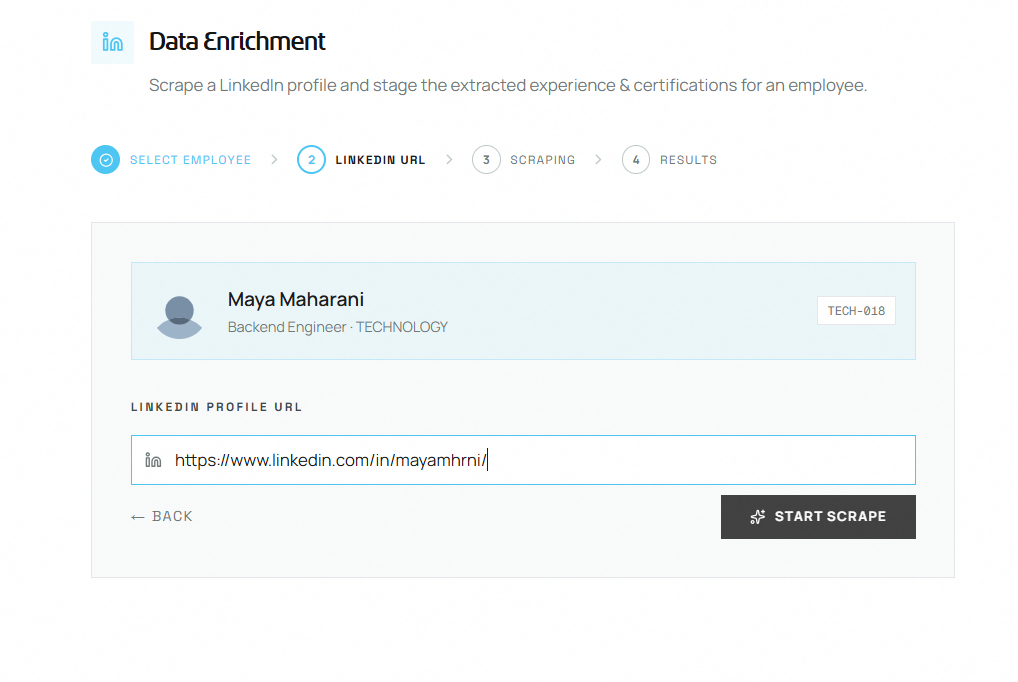
- Paste the employee's full LinkedIn profile URL, for example
https://www.linkedin.com/in/username/. Addresses containinglinkedin.com/pub/are also accepted. - Press Enter or click Start Scrape.
- Click ← Back to choose a different employee.
URL checks. If the URL isn't right, a red message appears under the field:
| Message | What to fix |
|---|---|
| "LinkedIn URL is required" | The field is empty |
| "URL must start with https://" | Add https:// at the start |
| "Must be a LinkedIn profile URL (linkedin.com/in/...)" | Use a personal profile link, not a company page or post |
If the enrichment service itself is unavailable, a message appears in the same place, for example "LinkedIn scrape service rejected the request. Try again shortly". If it says to contact an administrator, do so.
⚠️ Warning: Check you've pasted the right person's URL. The scraper reads whatever profile is at that address. It does not check that the profile belongs to the selected employee.
Common mistakes to avoid:
- Pasting a LinkedIn company page or post URL instead of a personal profile URL.
- Pasting a shortened or redirect link. Always use the full
https://www.linkedin.com/in/...address.
Step 3 — Scraping in Progress
After you click Start Scrape, our LinkedIn enrichment service reads the profile. You just wait.
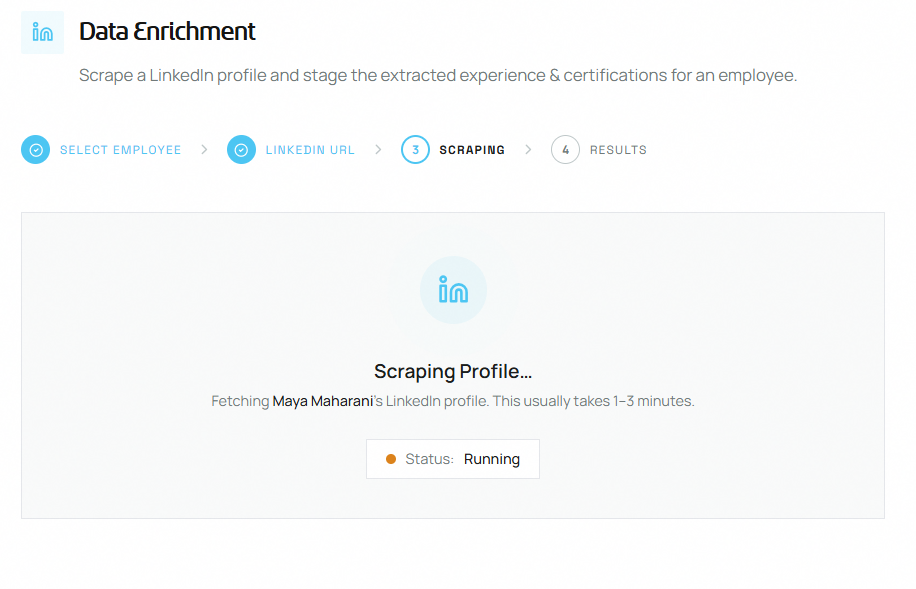
- A pulsing LinkedIn icon and a Status badge show the scrape is running.
- It usually takes 1–3 minutes.
- The page checks for the result automatically every few seconds. You don't need to refresh.
- Stay on this page until the results appear.
If the scrape fails, a Scrape Error panel replaces the progress indicator and shows a message:
| Message | Likely cause | What to do |
|---|---|---|
| "LinkedIn profile is private or restricted, so it cannot be scraped." | The profile is private or not visible | Ask the employee to make their profile public, then try again |
| "LinkedIn URL is invalid or profile was not found." | Wrong URL, or the account was deleted | Check the URL and try again |
| "No profile data returned. LinkedIn URL may be invalid or profile is private." | Nothing came back for that URL | Check the URL and the profile's visibility, then try again |
| "Scrape timed out…" | The scrape took more than about 10 minutes | Run the scrape again |
| "Scrape failed. Please try again." (or stopped / error) | The enrichment service had a problem | Try again |
Click Try Again to go back to Step 2 with the URL still filled in, then click Start Scrape.
A failed or timed-out scrape is marked failed in Scrape History.
⚠️ Warning: If a scrape times out, or you leave the page before the results appear, run the scrape again. Don't wait for it to finish on its own.
Step 4 — Results
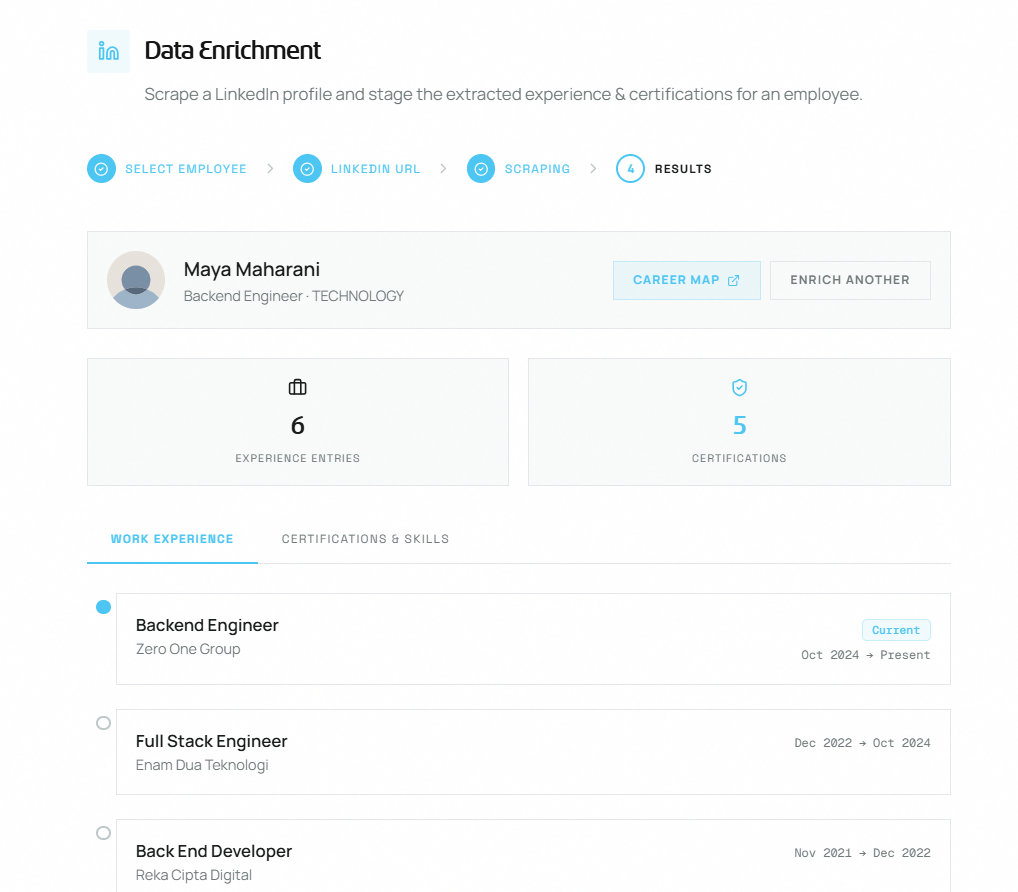
At the top, a summary bar shows the employee with two buttons:
- Career Map opens the employee's Career Navigator page.
- Enrich Another starts the wizard again for a different employee.
Below that, two counters show the number of Experience Entries and Certifications.
Work Experience tab
The employee's work history as a timeline, with current roles first and then the most recent. Each entry shows:
| Field | Description |
|---|---|
| Job Title | The role held at that company |
| Company | Organisation name |
| Date range | Start and end month/year. Current roles have a Current badge |
Work experience feeds the Experience Match part of the Career Navigator fit score. A fuller history means better career recommendations.
Certifications & Skills tab
LinkedIn skills, grouped into three categories, each with a count:
| Category | Badge colour | What it includes |
|---|---|---|
| Certifications & Licenses | Indigo | Professional certifications (e.g., CFA, PMP) |
| Courses | Green | Completed online or offline courses |
| Languages | Amber | Spoken or written languages and proficiency |
These feed the Skills Match part of the fit score, and Skills to Develop.
If a tab is empty, the profile had nothing in that section ("No work experience data staged." or "No skills data staged.").
What Happens to the Data
- It's saved straight away. There is no separate confirm step. The data goes directly into the employee's profile and appears in Career Navigator.
- A re-scrape replaces the old LinkedIn data. Scraping the same employee again replaces their earlier LinkedIn work history, certifications, courses and languages with the new results.
- HR records are kept. Internal training, HR career history, HR education and skill tags are never overwritten.
- Photo and profile link. The employee's LinkedIn photo and profile link are stored too. The photo appears wherever their picture is shown, for example in Talent Finder, Organisation Structure and Career Navigator.
- Profile Summary. LinkedIn headline, about section and education also feed the Career Navigator Profile Summary.
- AI scores are marked outdated automatically. The employee's saved career paths and fit scores are flagged as outdated. Open their Career Navigator page and click AI Recommendations to generate fresh ones.
Impact on Career Navigator
| Career Navigator feature | How Data Enrichment improves it |
|---|---|
| Fit Score — Experience Match (40%) | More detailed work history means more accurate experience alignment |
| Fit Score — Skills Match (30%) | LinkedIn certifications and courses fill gaps not covered by internal training |
| External Work Experience | LinkedIn roles appear alongside HR records, labelled LinkedIn |
| Profile Summary | Work history, education and headline give the AI more to draw on |
| Profile photo | Shown across the platform |
Common Mistakes to Avoid
- Re-scraping when you don't need to. If the employee is already in Scrape History as finished, click the entry to see the saved results instead.
- Forgetting to regenerate career paths. After enriching a profile, open the employee in Career Navigator and click AI Recommendations. The old career map is marked outdated and stays empty until you do.
- Expecting one scrape to cover several employees. Data Enrichment runs one employee at a time. For many employees at once, use the LinkedIn Profile import type in Talent Finder's Bulk Import.
- Ignoring failed scrapes. A failed badge usually means the URL is wrong, the profile is private, or the scrape timed out. Fix the cause and run the scrape again.