Home Dashboard
The Home Dashboard is your starting point every day. It gives you a snapshot of workforce health across your Business Units, and every section links through to the place where you can act on it.
From top to bottom, the page shows:
- A greeting with two shortcut buttons
- Four headline numbers (KPI tiles)
- Incoming hires
- Talent Overview
- Succession Distribution, the Intelligence Feed and Recent Activity
- Quick Access shortcuts to the main modules
Greeting
The page opens with "Good morning", "Good afternoon" or "Good evening" and your name, plus how many business units you manage.
- Launch Analysis opens Chat With Data.
- View Workforce opens Talent Finder.
Reading Your KPIs
Four tiles give you the big picture at a glance:
| Tile | What it means |
|---|---|
| Total Employees | The number of employees in your business units. |
| Succession Coverage | The share of those employees whose role has at least one active succession plan. The small bar fills to match. |
| Critical Roles | The number of employees tagged as holding a critical role. This counts every critical role, whether or not a successor is in place. |
| Active Dev Plans | The number of development plans in Active status. |
How fresh are these numbers?
- Succession Coverage changes as soon as a succession plan is created or removed.
- Total Employees, Critical Roles and Active Dev Plans are refreshed every night. They also refresh straight away after a bulk import, or when you change someone's critical-role tag in Talent Finder.
💡 Tip: To see how many critical roles have no successor, look at Critical Role Risk in the Talent Overview below.
Incoming Hires
The Hiring pulse — Incoming hires section shows how many hiring memos sit in each stage in SWORD. The stage names come from SWORD.
- It shows counts only — never names.
- Every HRBP can see it. Unlike the rest of the page, it covers all hiring memos, not just your business units.
- If you have access to Interview assessments, a link to it appears beside the heading.
If there are no memos yet, you'll see "No hiring memos in SWORD yet."
Talent Overview
The Talent Overview shows the shape of your workforce. It covers the active employees in your business units — the line under the heading tells you how many.
Most blocks link straight into Talent Finder with the matching filter already applied, so you can go from a number to the actual people in one click.
Talent Grid
The 12-box performance × potential grid. Performance rises from left to right, and potential rises from bottom to top, so STAR Leaders sit in the top-right corner.
- Each box shows the talent class and its headcount. Darker boxes hold more people.
- Click any box to open that group in Talent Finder.
- Employees who haven't been classified yet are counted in a note under the grid.
See the 12-box matrix for what each class means.
Segment Tiles
Four tiles group the talent classes into segments you'll use often. Each shows a headcount and its share of your workforce. Click a tile to open those people in Talent Finder.
| Segment | Talent classes included |
|---|---|
| Top Talent | STAR Leaders, Future Leaders, Emerging Leaders, Growing Talent |
| Succession Ready | STAR Leaders, Emerging Leaders, Future Leaders |
| Needs Development | Strugglers, Misfits, Average Workers |
| Hidden Gems | Underutilized, Diamond in the Rough |
Critical Role Risk
This block answers: which critical roles have no active succession plan?
- The large number is how many critical roles are uncovered, out of all critical roles in your business units.
- The bar and percentage show how many are covered.
- Retire within 24 months — critical-role holders reaching the statutory pension age within the next two years.
- Retiring and uncovered — the most urgent group: retiring soon and without a successor.
- Review critical roles opens Talent Finder filtered to critical roles.
If no roles are tagged critical yet, the block says so.
Succession Readiness
For every position that has a succession plan, this counts its best-ready successor: Ready Now, Ready 1-2 Years or Ready 3+ Years. A position with three successors still counts once. The total number of covered positions is shown underneath.
Calibration Coverage
The share of your workforce whose talent rating has been through a calibration session. The note underneath tells you how many ratings are still uncalibrated — treat the Talent Grid as indicative for that group.
Organisation Layers
Headcount by job layer, with the most senior layer at the top. The darker part of each bar is the Top Talent in that layer. Grades that don't follow the standard layer names are listed under their own name, and employees with no layer recorded appear as Not recorded.
Tenure Profile
Years of service across your workforce, in five bands: under 1, 1–3, 4–7, 8–10, and over 10 years. Other and Not recorded columns appear when some records don't fit those bands.
💡 Tip: If the Talent Overview can't load, you'll see a Retry button. The rest of the dashboard keeps working.
Succession Distribution
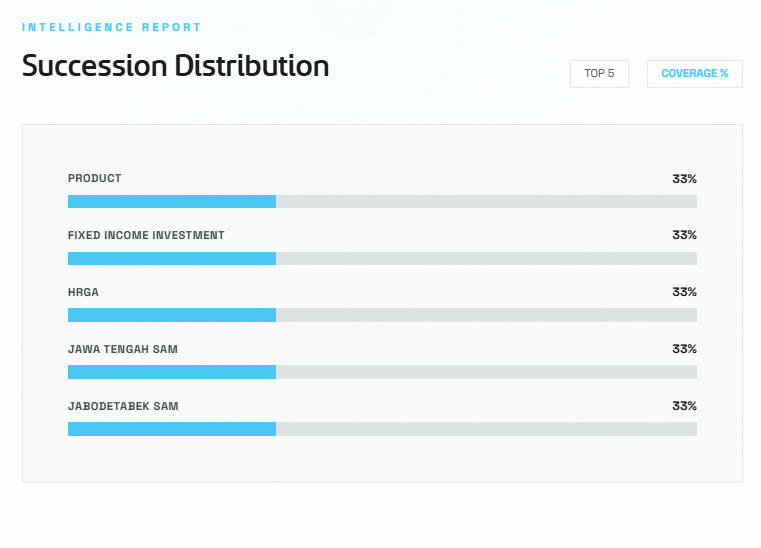
The Succession Distribution chart shows succession coverage for five departments in your business units.
- Each department has one bar showing its coverage % — the share of its employees whose role has an active succession plan.
- The chart lists the five departments with the highest coverage, so it shows where succession planning is strongest. Departments with only one employee are left out.
To find gaps, use Critical Role Risk above or filter Talent Finder.
Intelligence Feed & Recent Activity
Intelligence Feed
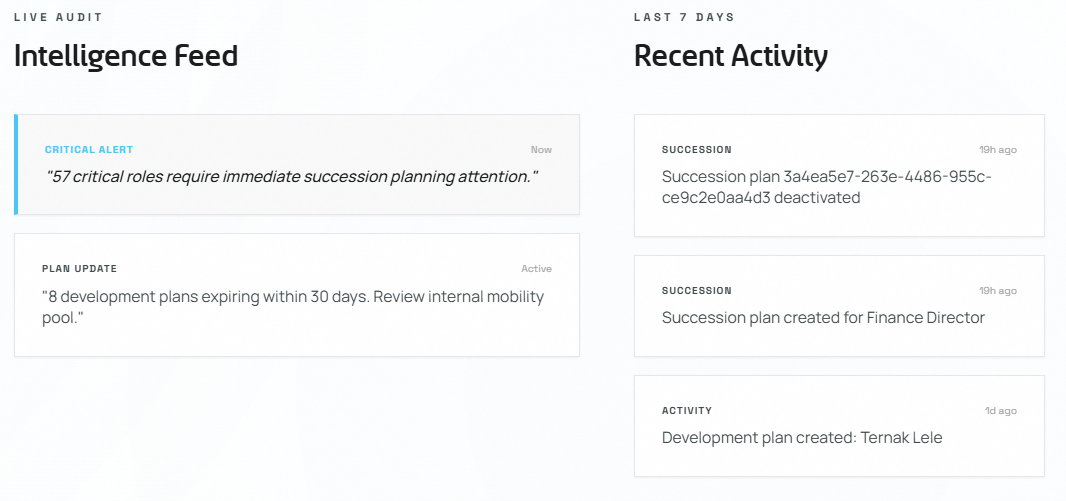
The Intelligence Feed shows two alerts:
- Critical Alert — how many critical roles there are in your business units. This is the same number as the Critical Roles tile.
- Plan Update — how many open development plans have an end date within the next 30 days, including any that are already past their end date.
Recent Activity
Recent Activity shows the three most recent actions in your business units, newest first. Each entry shows:
- A type badge — Succession (succession plans), Profile Tagged (critical-role or potential-talent tags), Plan Update (a development plan marked complete) or Activity (everything else, such as other development-plan changes)
- How long ago it happened ("2m ago", "1h ago", "3d ago")
- The employee's name, when the action was about a person
- A plain-language description
- Who did it ("by …")
Use the feed to check that your recent changes and bulk imports went through.
Quick Access Cards
At the bottom of the dashboard, Quick Access cards give you one-click shortcuts to:
- 01 / Search — Talent Finder — search and filter employees across your business units
- 02 / Navigate — Career Navigator — career paths, fit scores and skill gaps
- 03 / Analyze — Chat with Data — ask questions about your talent data
- 04 / Match — Position Match — rank your talent pool against an open role
- 05 / Discover — Similarity Search — find look-alikes of the people you pick
The Enter Analysis Engine link underneath also opens Chat With Data.