Position Match
Position Match is an AI-powered tool that finds the best candidates for a position you are recruiting for. You pick the vacancy, and the AI ranks your internal talent pool by how well each person fits the job — alongside the people who have already applied through Workable.
There are two ways to run it:
| Option | What it does |
|---|---|
| Generate Top 50 Suggested | Scores your whole eligible talent pool and returns the 50 best fits. |
| Build Custom List | Scores only the people you pick (up to 20) and explains how each one fits. |
The Page Layout
| Area | What it holds |
|---|---|
| Match History (left) | Your past runs. You can hide it to give the results more room. |
| Define Criteria (centre) | Position to Fill, Job Description, Candidate Filters, Compare with Workable, and the two run buttons. |
| Results (right) | The ranked candidates, or a short explanation before your first run. |
Step 1 — Position to Fill
Open Position Match from the navigation sidebar. Click the Position to Fill box and start typing.
A list of open vacancies in Workable appears, filtered by job title or department. Each vacancy shows its department, how many applicants it has (or "no applicants yet"), and "no description synced" if its text hasn't arrived yet.
Picking a vacancy does three things at once:
- It names the position. A green Open in Workable badge confirms it matches a live vacancy.
- It fills in the Job Description from the vacancy (see Step 2).
- It adds the vacancy to Compare with Workable, so its applicants are scored too (see Step 4).
Free text still works for a role that isn't advertised. You just won't get the job description filled in or the vacancy added for you. You can still write or generate a description, and still add vacancies yourself in Compare with Workable.
If there are no open vacancies, the box says so — type a position title and use Auto-Generate for the description.
Changed in v2.0.0: the Reports To (supervisor position and layer) fields have been removed. Seniority is now taken from the position title and the job description.
Step 2 — The Job Description
In most cases you don't have to write one. When you pick a vacancy, the description and requirements your recruiter wrote in Workable are filled in, with a badge showing where the text came from:
| Badge | What it means |
|---|---|
| From Workable | Taken straight from the vacancy. |
| Condensed | The posting was longer than the 8,000-character limit, so the AI shortened it. Responsibilities and requirements are kept; company boilerplate and benefits are dropped. |
| AI-generated | You clicked Auto-Generate. |
Things to know:
- Picking a different vacancy replaces the description with that vacancy's posting.
- Clearing Position to Fill also clears a description that came from Workable.
- If the box stays empty, the vacancy's text hasn't synced yet. Click Auto-Generate and the AI drafts a description from the position title. Review it before continuing.
Editing the description
The box shows the description formatted and read-only. To change it, click Edit (or Write when the box is empty), or Edit in focus mode below the box. This opens a full-screen Edit Job Description editor:
- Switch between Edit, Split (editor and preview side by side) and Preview.
- A counter shows how many of the 8,000 characters you have used.
- Simple formatting works:
## heading,**bold**and- bullet. - Auto-Generate is also available inside the editor.
- Click Save to keep your changes, or Cancel (or press Esc) to discard them.
Once you edit the text yourself, the source badge disappears.
Note: The run buttons stay disabled until the Job Description has at least 10 characters.
💡 Tip: The more specific the description, the better the ranking. Add concrete responsibilities, required qualifications and domain keywords.
Step 3 — Candidate Filters (Optional)
Click Candidate Filters to narrow the pool before scoring. A number on the section shows how many filters are active.
| Filter | Description |
|---|---|
| Age Range | One or more age bands: < 20, 20 - 29, 30 - 39, 40 - 49, 50 - 59, >= 60 |
| Layer | One or more seniority levels (see the Layer Reference below) |
| Tenure (Years of Service) | A Min and/or Max number of years at the company |
Filters combine. For example, Layer = Department Head/Expert and Min = 5 evaluates only Department Heads with 5 or more years of service. Click Clear filters to remove them all.
Filters apply to Generate Top 50 Suggested only. Build Custom List ignores them and scores exactly the people you pick.
💡 Tip: Leave filters blank to evaluate your whole eligible talent pool. Filtering hard on a small organization can leave too few candidates.
Step 4 — Compare with Workable (Optional)
Below the filters, Compare with Workable scores the people who applied through Workable against the same job description. They appear in a second column beside your internal shortlist.
| What | How it works |
|---|---|
| Vacancy already added | The vacancy you picked in Step 1 is added automatically. |
| Suggestions | Up to three vacancies are suggested for your position, even while the section is closed. Ones the system is less sure about have a dashed border and a weak label. Click a suggestion to add it. |
| Adding more | Open the section to search all vacancies by job title, department or code. Vacancies whose applicant profiles are ready are listed first. Tick up to 5 vacancies in total. |
| Removing one | Click the × on a selected vacancy. |
| Status line | Tells you how many applicants will be scored. If profiles are still loading, it says so — your internal results are never held up; run again later for the rest. |
Someone who applied to several of your selected vacancies is ranked once. Each selected vacancy is also guaranteed a share of the evaluation, so a vacancy with 900 applicants cannot crowd out one with 12.
Note: This section only appears when the Workable integration is switched on for your organization.
Step 5 — Run the Match
Generate Top 50 Suggested
Click Generate Top 50 Suggested. The button shows "Matching Talent..." and the results panel shows "Analyzing talent pool..." while the AI scores candidates.
Build Custom List
Use this when you already have people in mind.
- Click Build Custom List.
- In the Build Custom Talent Pool window, search by name, position or employee ID and tick up to 20 people.
- Your picks appear under Selected. Use × to remove one, or Clear all.
- Click Done — Score N.
Custom List results show Your Custom List instead of Top Matches. Workable applicants and the Recommendation are not part of a Custom List run. If any of your picks are outside your authorized business units, they are skipped and a notice tells you how many.
Reading the Results
Results header
| Element | What it shows |
|---|---|
| Top Matches | Up to 50 best-fit candidates (or Your Custom List for a custom run) |
| Count line | How many candidates were ranked, and how many employees were evaluated |
| Position label | The position you matched against |
Notices you may see
| Notice | What it means |
|---|---|
| Shallow Candidate Pool | Fewer than 5 candidates scored 60% or above. If you used filters, click Clear active filters → to remove them, then run again. |
| Missing LinkedIn data | Some listed candidates have no LinkedIn work experience or skills on file. Click Enrich Data to see who, then click a name to open Data Enrichment with that person already selected. Skills Match is more accurate for enriched profiles. |
| People skipped | (Custom List only) Some picks were outside your authorized business units. |
Recommendation
For every Top 50 run, a Recommendation box appears above the candidate columns. The AI compares your top 5 internal candidates with the top 5 Workable applicants (or just your internal top 5 if you didn't compare with Workable) and suggests what to do next.
- The box opens with two closed sections: Summary and Next actions. Click either to expand it.
- People are shown as name chips with their photo and score. Click an employee's chip to open their detail view. Click an applicant's chip to open their Workable profile in a new tab.
- A
*after a score means the applicant's score is capped at 60 (see below). The AI is told about the cap, so it weighs applicants on what they show rather than penalising them for gaps in our data. - A recommendation is written once for a given comparison and then reused, so reopening the same results is instant. A Saved badge shows when you are seeing a saved one.
- If you have all-business-unit access, you can click Regenerate to have it rewritten.
- If the recommendation can't be written, the box says so. The scores below it are not affected.
Note: This replaces the older Recommended Candidates panel, where you dragged internal candidates into a saved shortlist. Lists saved in that panel are no longer shown.
Internal candidate cards
Each internal candidate appears as a card in a two-column grid:
| Element | What it shows |
|---|---|
| Rank | Position in the ranked list (#01, #02, …) |
| Avatar | Photo or initials |
| Name and current position | The employee's name and job title |
| Fit Score | Overall match percentage |
| Badges | Talent class, layer and years of service |
| Match bar | Green for the strongest fits, then cyan, amber and red |
Click any card to open the candidate's detail view.
Workable applicants
When you compared vacancies, a Workable applicants column appears beside the internal one, headed with the vacancy name (or how many vacancies you selected).
Each applicant card shows their rank, name, current role (or Applicant), their stage in Workable, and a Fit score. Badges show which vacancy they applied to (when you selected several), Thin profile, and Capped at 60.
Applicant scores are not directly comparable to employee scores. For an employee, TalentForge holds a full record: performance history, talent class, layer, tenure and more. For an applicant it holds only what they put on their application.
- Where an applicant has no skills and no prior roles on file, their score is capped at 60 and marked as such. That reflects how little we know, not the person.
- Applicants with nothing at all to score are listed separately under Show N applicants with no profile data, with a link to their Workable profile.
- If no applicant has enough on file, the column says so.
Candidate Detail View
Clicking a candidate card opens a full detail view.
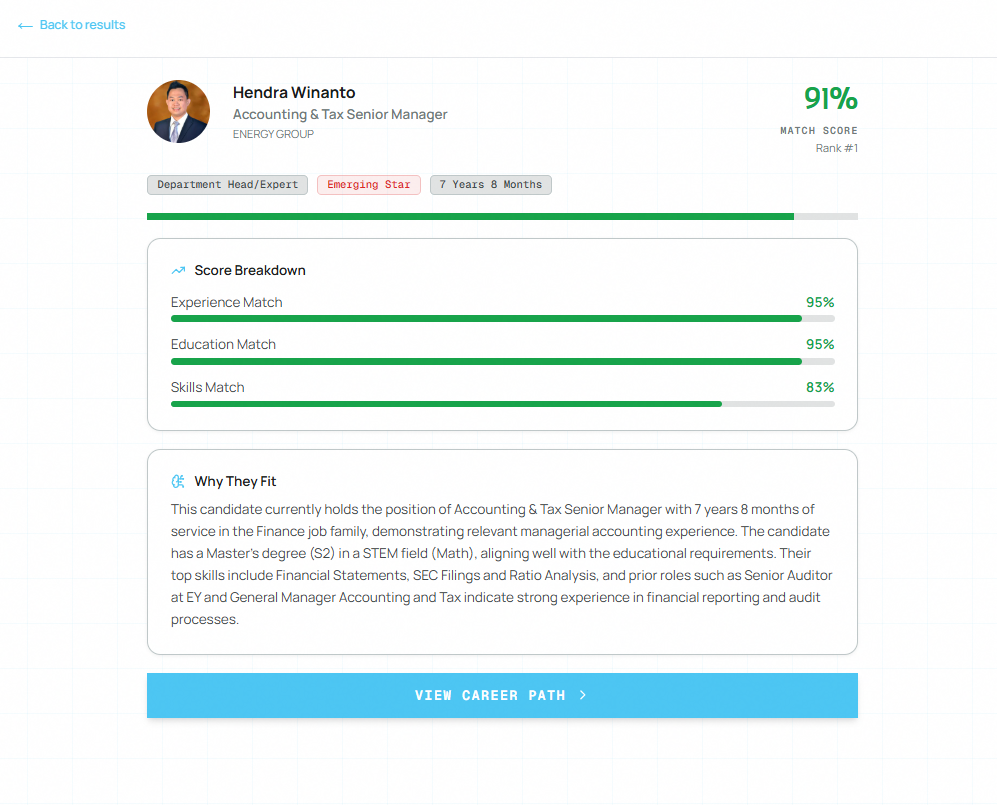
Score Breakdown
| Score | What it measures |
|---|---|
| Match Score | The overall AI-assessed fit, with the candidate's rank |
| Experience Match | How closely their prior roles and job history fit the position |
| Education Match | Whether their degree level and field suit the role |
| Skills Match | How many of the role's skills they already hold (shown only when skills data is available) |
The big Match Score is green from 80%, amber from 60% to 79%, and red under 60%.
Badges
Below the score, badges show the candidate's layer, talent class and years of service.
Why They Fit
The Why They Fit section is the AI's written rationale for the score. Read it to understand the reasoning behind the numbers.
View Career Path
Click View Career Path to open the employee in Career Navigator, pre-loaded with the Position Match scores so you can see their career path in context of the target role.
For a Workable applicant, the detail view shows a Workable applicant badge and an Open Workable profile link instead.
Click ← Back to results to return to the list.
Match History
The Match History panel on the left lists your past runs.
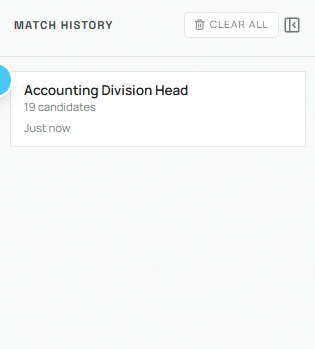
Each entry shows the position, the number of candidates (with a Custom tag for Custom List runs) and how long ago it ran.
| Action | How to use it |
|---|---|
| Restore a run | Click an entry to reload its form and results, including any Workable comparison |
| Delete one entry | Hover over it and click the trash icon |
| Clear all history | Click Clear All at the top of the panel |
| Start over | Click + New Request at the bottom of the panel |
| Hide the panel | Click the panel icon at the top of the panel; click Show history at the top of the page to bring it back |
Your last 50 runs are saved to your account, so they follow you to any computer you sign in on. Only you can see them.
Business Unit Diversity
If your account covers several business units, no single business unit can take more than 4 of the top 10 places. Candidates over that limit are not removed — they move further down the list — so the top of the results reflects talent across your whole scope.
Layer Reference
| Layer | Seniority |
|---|---|
| Staff | 1 (entry level) |
| Team Leader / Specialist | 2 |
| Section Head / Sr. Specialist | 3 |
| Department Head / Expert | 4 |
| Division Head / Master Expert | 5 |
| BU / SU Head | 6 |
| Director | 7 |
| C-Level | 8 |
| President Director / CEO | 9 |
| Board Commissioner | 10 (highest) |
Common Mistakes to Avoid
- Using a vague job description. Short or generic descriptions (e.g., "Manage finance") produce weak rankings. Add specific responsibilities, qualifications and keywords.
- Over-filtering the candidate pool. Combining layer and tenure filters on a small business unit can leave too few candidates to rank meaningfully.
- Ignoring the Shallow Candidate Pool notice. It means few strong matches were found. Relax the filters or adjust the description before acting on the results.
- Not reading "Why They Fit". The score alone doesn't tell the whole story.
- Reading a capped applicant score as a weak candidate. An applicant capped at 60 had a thin application, not necessarily a poor fit. Open their Workable profile before ruling them out.
- Selecting five unrelated vacancies. Each one takes a guaranteed share of the evaluation, so padding the selection with unrelated vacancies spends part of the shortlist on applicants for a different job.